
HORNCALL
One app to approve them all.
Your AI coding agent shouldn't have to wait until you're back at your desk. Horncall sends its permission requests to your phone — approve with one tap or gesture and the agent keeps working. One app for Claude Code, OpenAI Codex CLI, Gemini CLI and GitHub Copilot CLI; end-to-end encrypted, every decision signed by your phone.
What it does
- Works with Claude Code, Gemini CLI, GitHub Copilot CLI and OpenAI Codex CLI. One pairing covers every AI on a computer; each chat is a "soldier" with a codename.
- The question shows on the computer and on the phone at the same time. Answer on the computer and it leaves the phone; miss it and it waits on the phone for up to 30 minutes, with a reminder every 2 minutes.
- Works on any network (Wi-Fi, mobile). Content is end-to-end encrypted; the relay only sees ciphertext.
- Nothing is ever approved automatically. Any error ends with the normal question on the computer.
What you need
| Where | What |
|---|---|
| Computer | Windows, macOS or Linux; at least one of Claude Code (terminal or VS Code), Gemini CLI, GitHub Copilot CLI, OpenAI Codex CLI; Python 3.10+ (on Windows tick "Add python.exe to PATH"); internet. |
| Phone | Android 8 or newer, internet. No iPhone yet. |
Install (10 minutes)
1. The phone app
- On the phone download horncall.apk and open it (allow installs from this source).
- Open Horncall and tap Fix on each card at the top (notifications etc.).
2. The computer — setup wizard
- Download horncall-plugin.zip and unpack it to a permanent folder (not Downloads — the AI tools run Horncall from there).
- Double-click setup.cmd (macOS/Linux:
sh setup.sh). The wizard finds your AI tools and asks which to connect, shows a QR code in the browser — tap Recruit (scan QR) in the app — and sends a test order. Answer it: from then on the computer trusts that phone. - Restart the connected tools.
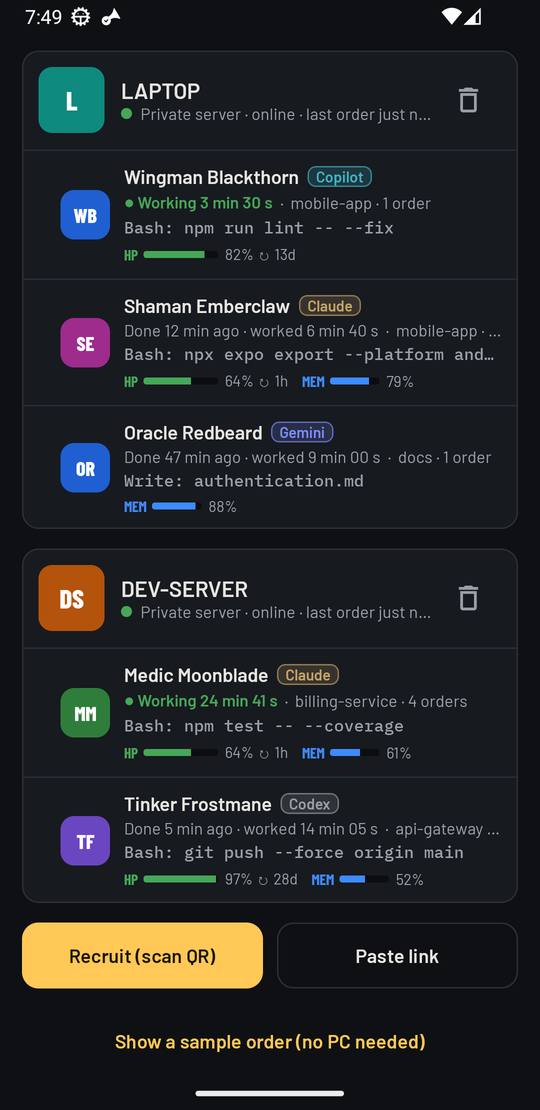
Want to see it first? In the app, below the recruit buttons, tap Show a sample order — no computer needed.
Every day
| In Claude Code type | What it does |
|---|---|
/horncall:approver on | Leaving the desk — questions go to the phone (--hours 2 switches off by itself). |
/horncall:approver off | Back — only the normal questions on the computer. |
/horncall:approver status | Pairing, mode, server, trusted phones, connected AIs. |
/horncall:approver update | Installs the newest signed add-on. |
Without Claude Code: python <folder>\plugin\hooks\approver_launcher.py on (same commands).
Answering
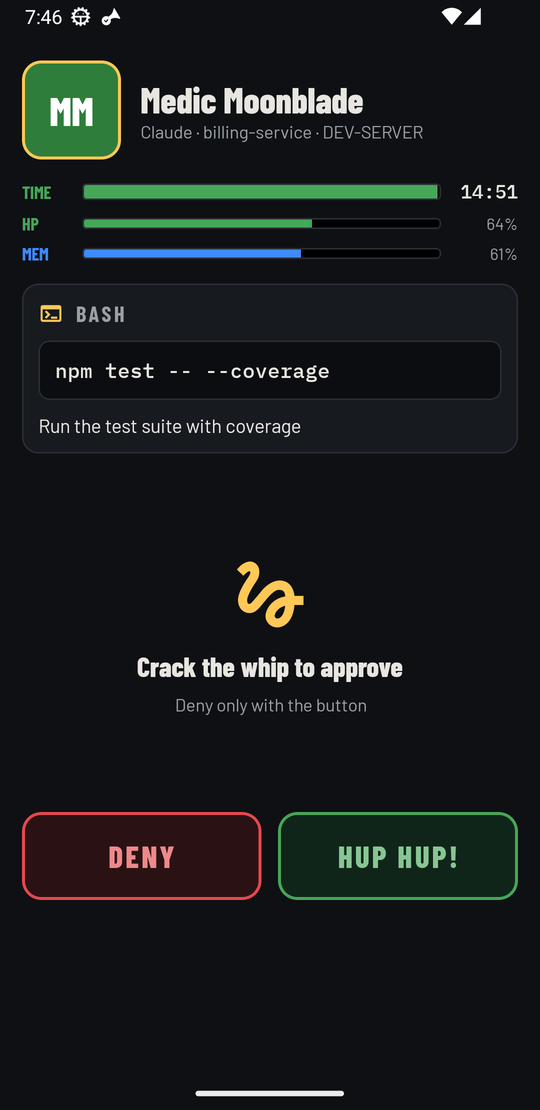
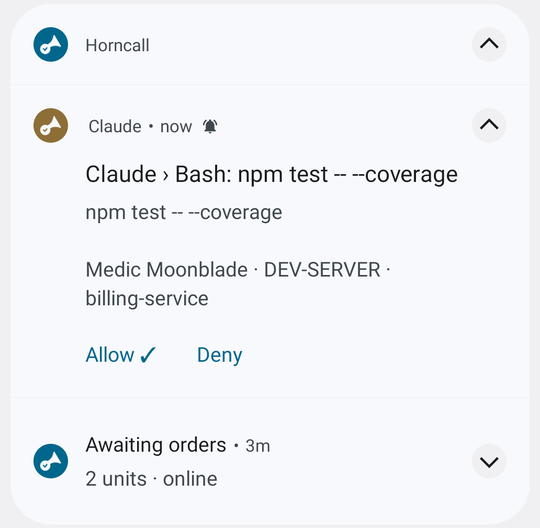
- Whip — a quick wrist flick approves ("Hup hup!"), on the card or right from the notification. Calibrate it once in Whip training.
- HUP HUP! / Allow ✓ approves, DENY refuses.
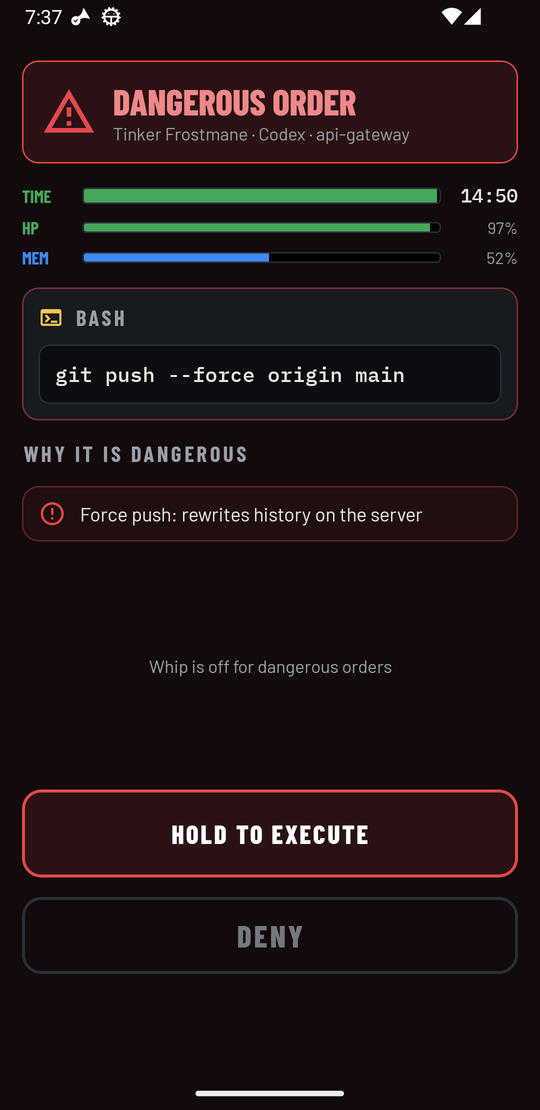
- Dangerous commands (deleting files, force push,
DROP TABLE, changes to secrets, hooks or CI, risky MCP tools) get a red card with reasons and need a long press — never a gesture. - Bars on the card: TIME left to answer, HP = the AI's plan quota left, MEM = chat memory left.
Barracks and stats
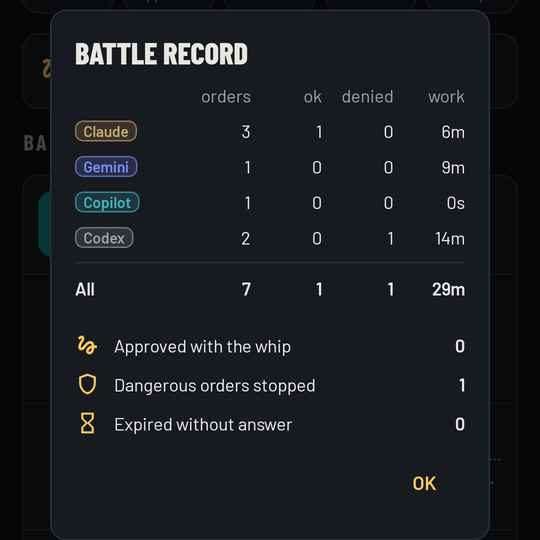
Every chat of the last 24 hours, per computer: working for how long, done and how long it worked, asleep after 8 quiet hours. Tap a soldier to see its last order in full. Tap the tiles for the Battle record per AI.
Gemini, Copilot, Codex
- Gemini CLI asks on its own first — start it with
--approval-mode yoloso only the phone asks. - Codex CLI: open
/hooks, trust and enable the three Horncall hooks. - Claude Code: plan quota (HP) comes only through the status line — the wizard can add it (terminal Claude Code, Pro/Max plans).
Security and privacy
- Orders are encrypted with a key known only to your computer and phones; the phone signs every decision with a key that never leaves it. A copy of the computer's key file can't approve anything.
- Your code and AI conversation stay on the computer — only the question and HP/MEM numbers reach the phone.
- No accounts, ads or analytics. Privacy policy.